Product update
Email editor — flush headers and blank lines that stay
Remove the default 40px above and below your email so a full-width header sits flush. Blank lines you add in a Text block now show in sent emails too.


Summarize this post with AI
Why this matters
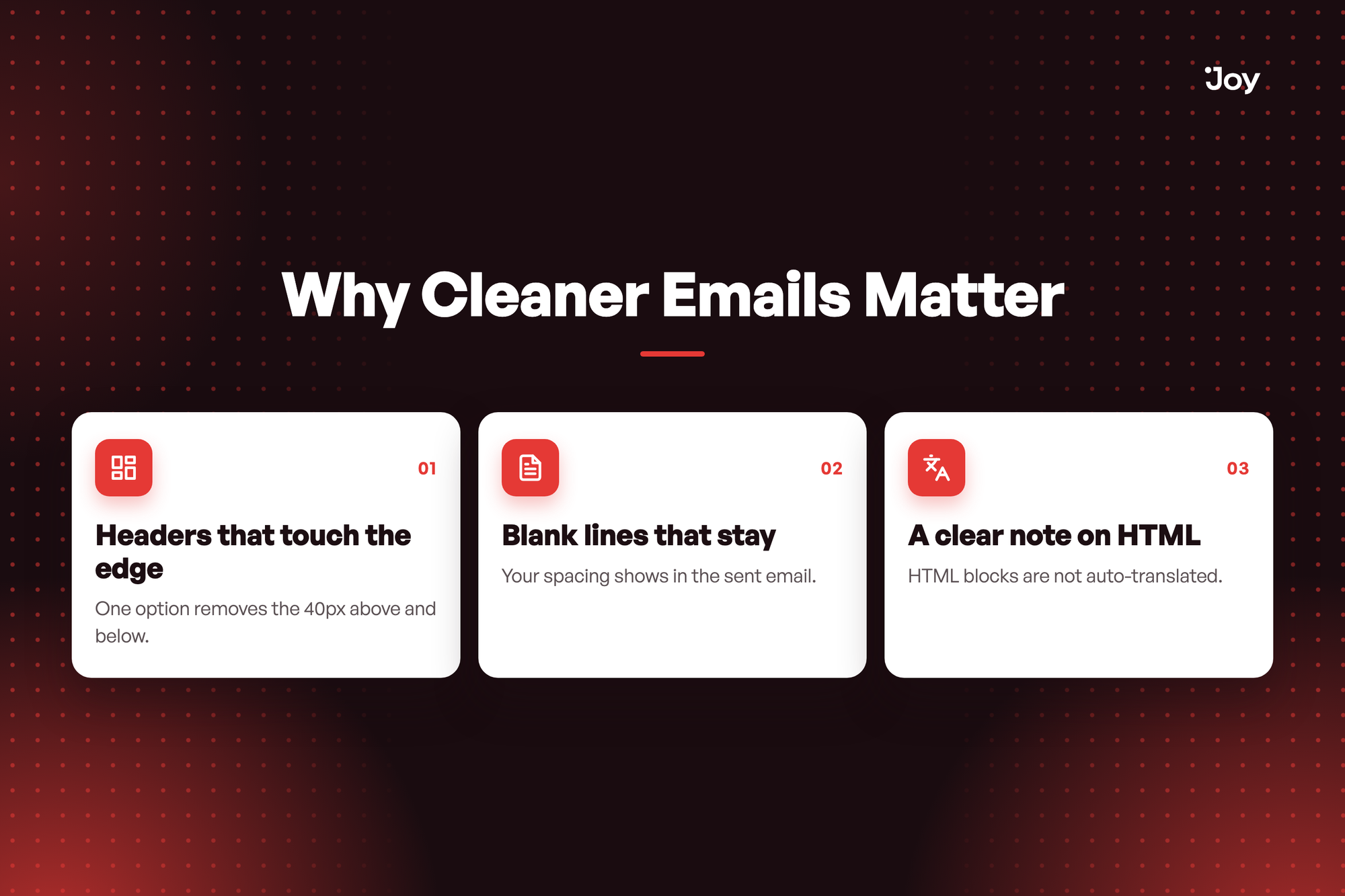
Two details in the block editor made sent emails differ from what you built: a fixed 40px of space around your content, and blank lines that collapsed. Both now follow what you build.
Headers that touch the edge
Check No space above or below the email and a full-width header or footer sits flush with the edge of the email.
Blank lines that stay
A blank line between paragraphs showed in the editor but collapsed in Preview and in the inbox. It now shows in both.
A clear note on HTML
The HTML content field now says so and tells you to paste the HTML again on each language tab, so a test in another language holds no surprise.
Illustrative question
My header banner should touch the top of the email, but a gap sits above it. How do I remove it? In the Settings tab, check No space above or below the email under Page background, then send yourself a test.
My header banner should touch the top of the email, but a gap sits above it. How do I remove it? In the Settings tab, check No space above or below the email under Page background, then send yourself a test.
How to access and use
- In Joy, go to Settings > Notifications and click Edit on a notification that opens in the block editor.
- Open the Settings tab and find Page background.
- Check No space above or below the email. The canvas and Preview drop the 40px above the first block and below the last. Uncheck it to bring the 40px back.
- Look at your Text blocks. Blank lines between paragraphs now show in Preview and in the sent email.
- Click Preview & test to send yourself a test, then click Save.