Joy × AOV.ai Bundles: Loyalty Rewards on Every Bundle, Right in Your Loyalty Widget
Bundles get a bigger order. Loyalty points give a reason to come back. Joy × AOV.ai Bundles now show both in one row, right inside your loyalty widget.

Summarize this post with AI
Why this matters
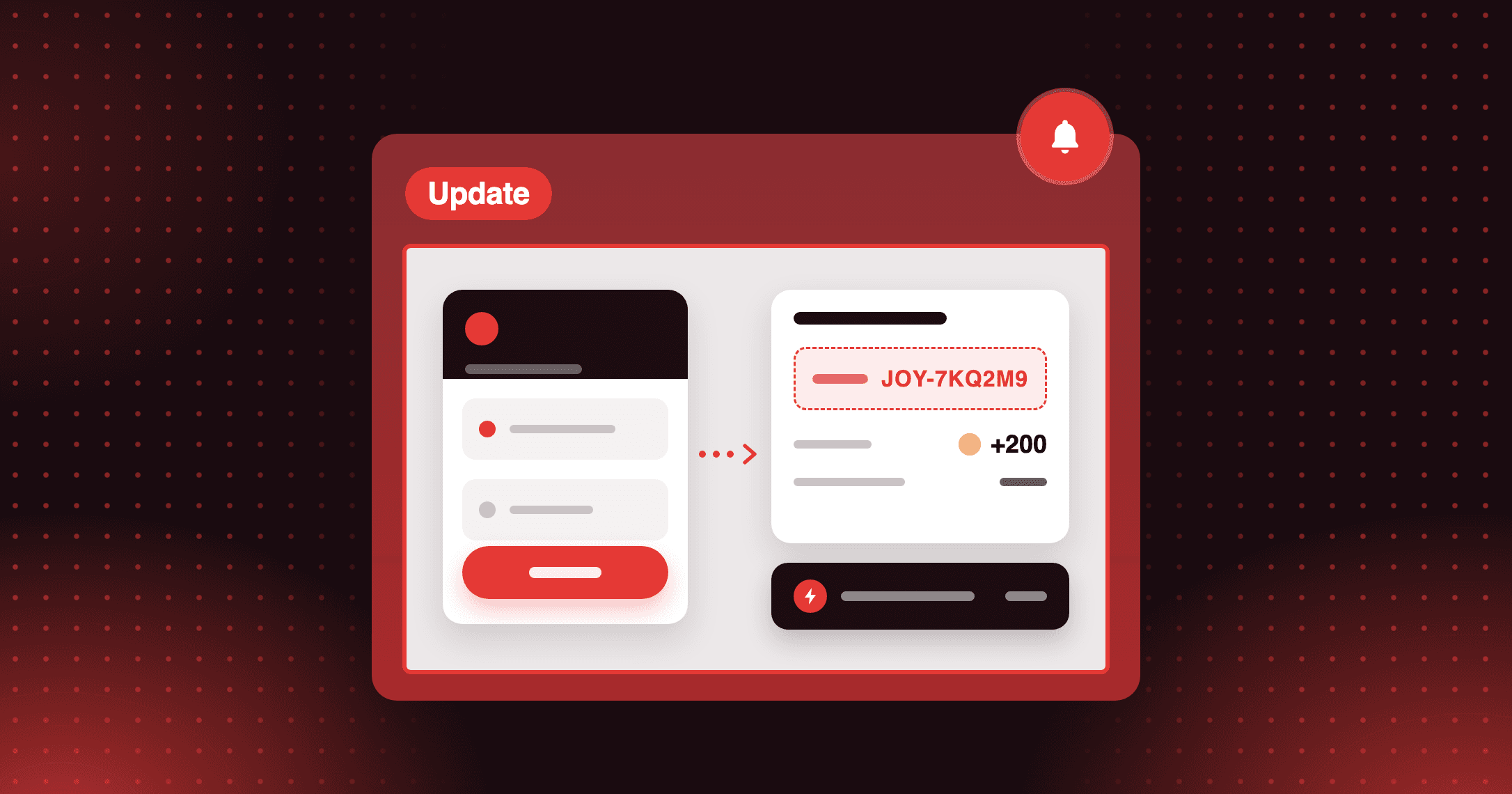
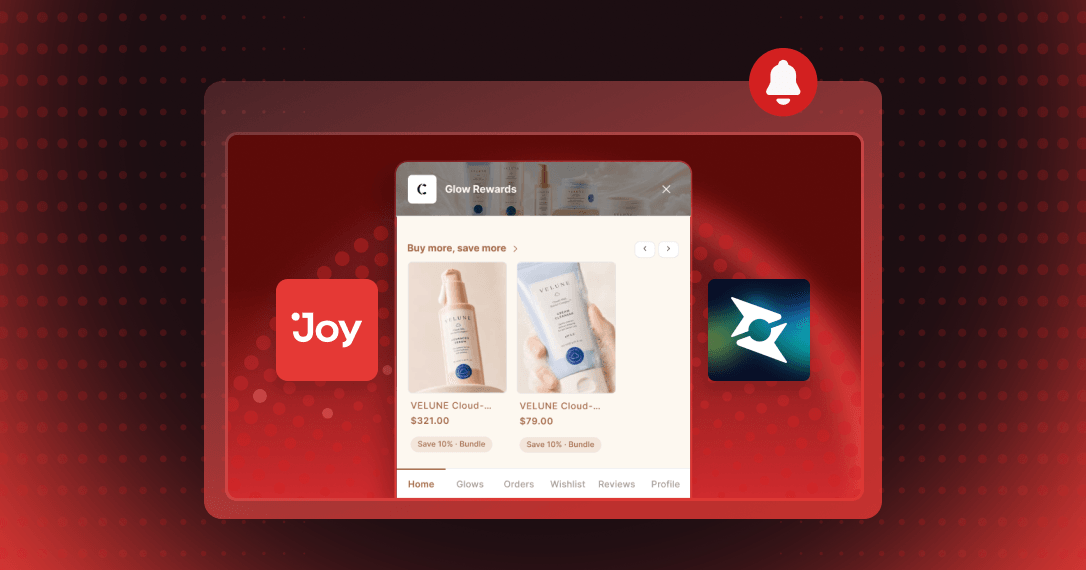
Show bundle deals and loyalty points in the same place. With Joy and AOV.ai Bundles Upsell, a product's bundle offer and its points appear together in the Joy widget, with no code or theme edits.
Show savings and points together
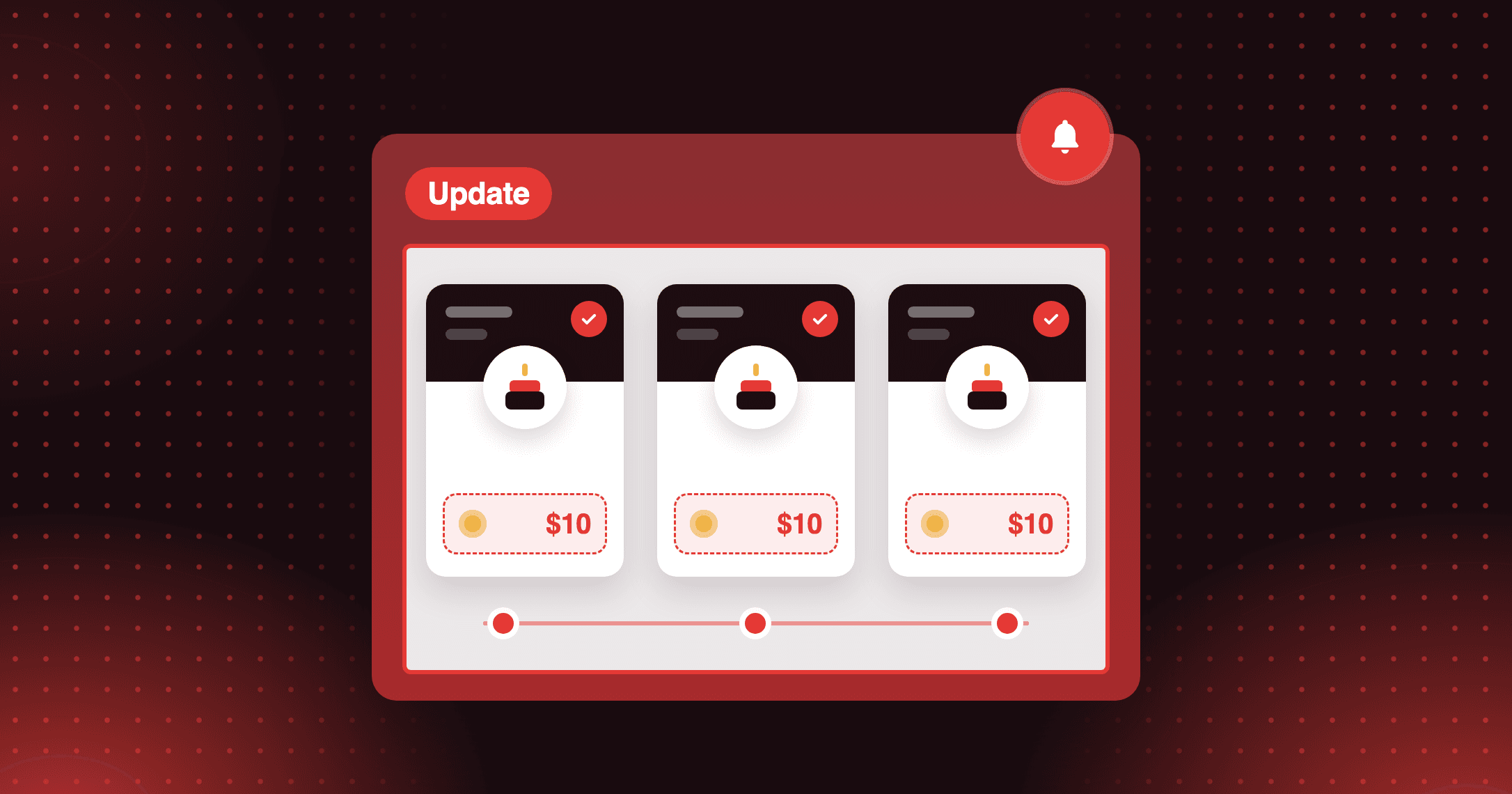
In the "Picks for You" section, a product with a bundle offer shows the deal and the points in the same row. Customers see what they save and earn before they click the product.
Add value without a deeper discount
Points reward a bundle purchase on top of the bundle discount. Bigger orders earn more points, which moves customers closer to a reward or a VIP tier.
Choose how the badge appears
Pick a Tinted, Filled, or Outlined badge style. You can also hide the badge on Recently viewed, Recommended, or Wishlist.
After you save, open the widget on your storefront and find a product with a bundle offer. Check that the deal and the points appear in the same row.
How to access and use
Step 1: Open the Unified widget editor
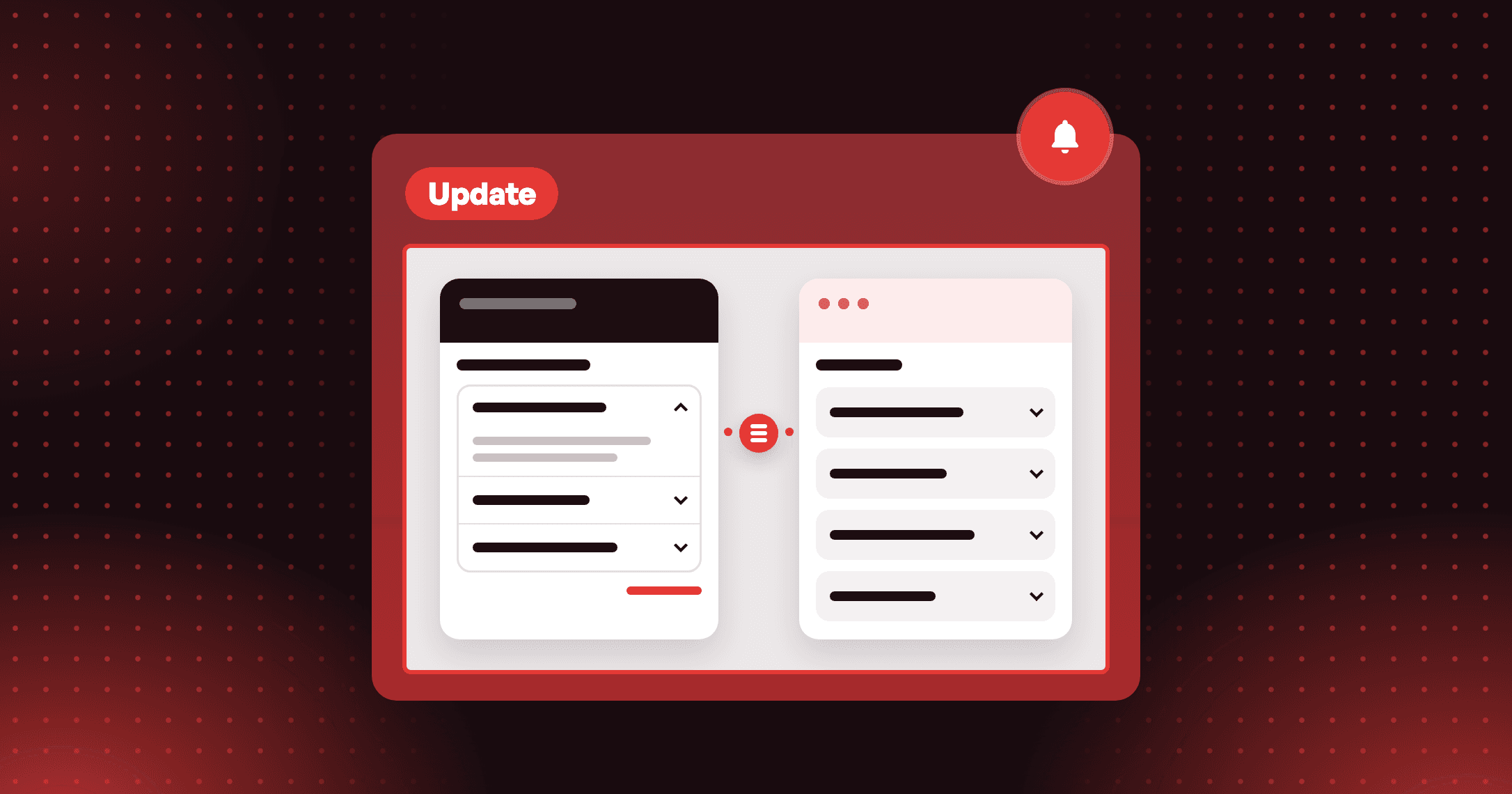
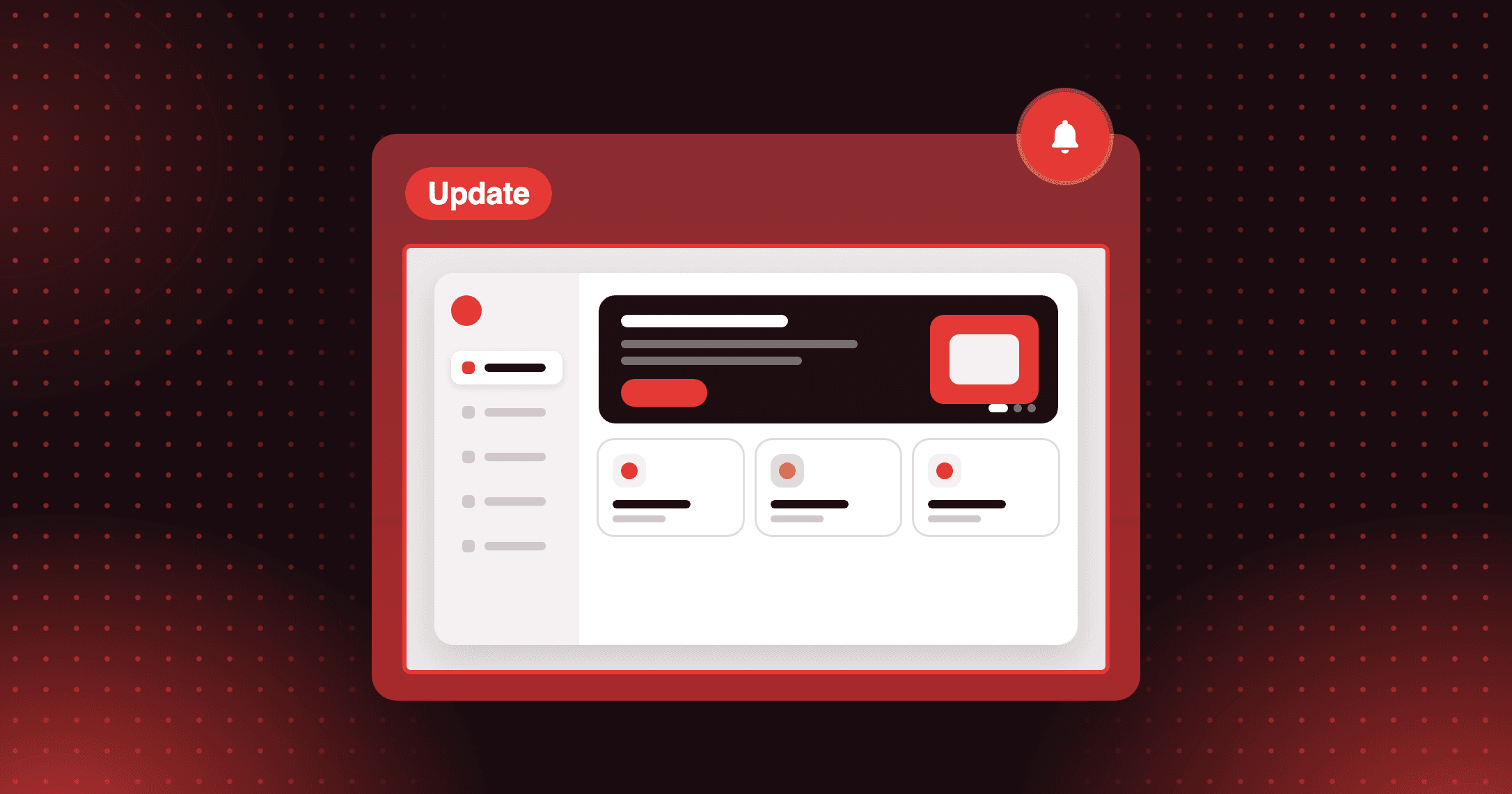
In the Joy Loyalty app, go to On-site content, select the Widget tab, and click Setup on the Unified widget card.
Step 2: Enable the Bundling extension
In the left sidebar, open Extensions and toggle Bundling on.
Step 3: Install AOV.ai Bundles
If needed, click Install AOV.ai Bundles app in the Bundling panel and install it from the Shopify App Store.
Step 4: Create your bundle offers
In the AOV.ai Bundle app, set up your offers: volume discount, frequently bought together, mix & match, fixed bundle, or bundle builder.
Step 5: Configure the badge and save
Back in Widget design → Bundling, set Bundling app connector to AOV.ai Bundles and pick a Badge style. Click Save.
Frequently asked questions
What happens when a customer clicks a bundle badge?
The product page opens, and AOV.ai shows the full bundle there so the customer can add products to the cart.
What do the badge colors mean?
Each AOV.ai offer type has its own color: frequently bought together, volume discount, fixed bundle, mix & match, and bundle builder.
What happens if I uninstall AOV.ai?
The bundle badges stop showing. Product cards in the widget return to normal, with no errors.